When to Use Manual Installation
Manual installation is ideal for:
- Small teams without centralized device management
- Individual users or contractors
- Testing before organization-wide deployment
- Personal use on non-managed devices
We recommend deploying via Microsoft Intune or Google Workspace for centralized management and automatic license key configuration.
Step 1: Install the Extension
Choose your browser and install PromptDuty from the official extension store:

Google Chrome
Install from Chrome Web Store

Microsoft Edge
Install from Chrome Web Store

Brave, Arc & Others
Install from Chrome Web Store
Open the Extension Store
Click the link above for your browser, or search for "PromptDuty" in your browser's extension store.
Click "Add to Browser"
Click the install button and confirm any permission prompts. The extension needs access to AI chat sites to scan your prompts.
Pin the Extension
Click the puzzle piece icon in your browser toolbar and pin PromptDuty for easy access.

Step 2: Get Your License Key
To activate the extension for your organization, you'll need a license key from your administrator.
If You're an Admin
Access Your Dashboard
Go to promptduty.com/dashboard
Find the License Key
Locate the License Key section
Copy and Share
Click Copy Key and share it with users who need to install manually
If You're a User
Ask your IT administrator or the person who set up PromptDuty for your organization's license key.
If your organization doesn't have a subscription yet, visit our pricing page to start a free trial.
Step 3: Activate the Extension
Once you have the license key, activate the extension:
Open the Extension
Click the PromptDuty icon in your browser toolbar to open the popup.
Go to Settings
Click the Settings tab at the bottom of the popup.
Enter Your License Key
Scroll down to the License section, paste your license key, and click Activate.
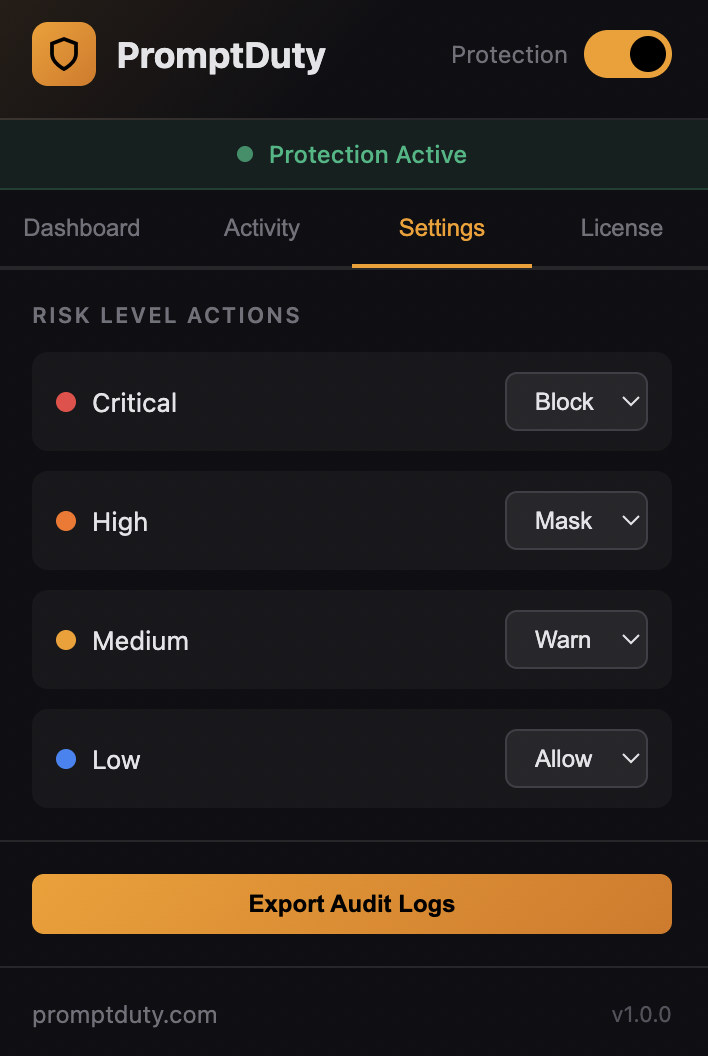
Once activated, you'll see your organization name and plan displayed in the settings. The extension is now linked to your organization's billing.
Verify Installation
To confirm PromptDuty is working correctly:
Visit an AI Site
Go to any supported AI site (ChatGPT, Claude, Gemini, etc.)
Enter Test Data
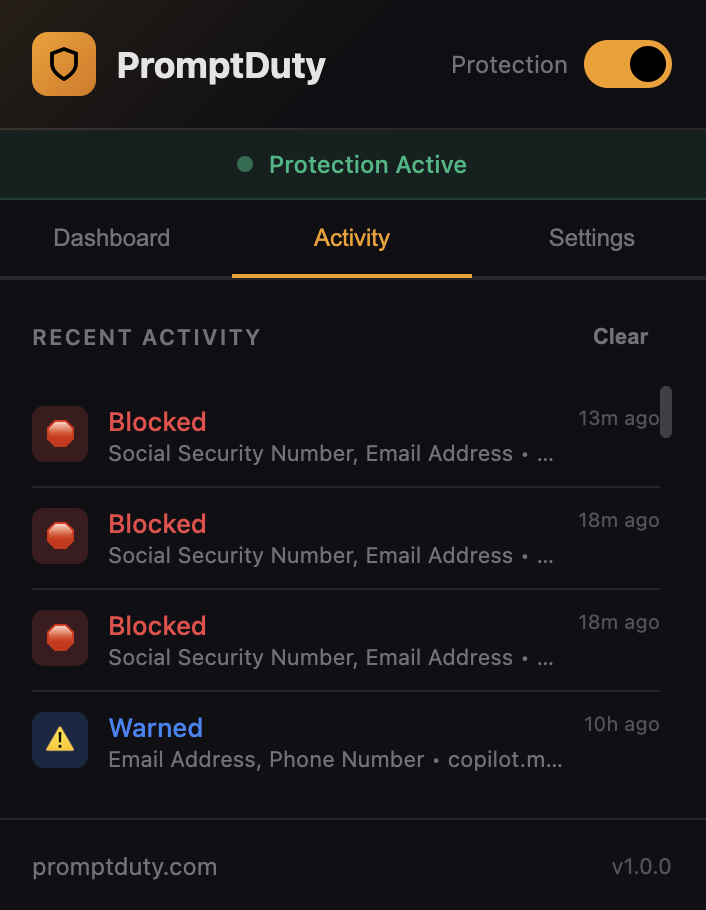
Type a message containing test data like My SSN is 123-45-6789
Check for Detection
Before sending, click Mask PII in the PromptDuty popup. The sensitive data should be masked or you should see a warning.
Supported AI Sites
PromptDuty automatically protects prompts on these AI chat services:
| Service | URL |
|---|---|
| ChatGPT | chat.openai.com, chatgpt.com |
| Claude | claude.ai |
| Google Gemini | gemini.google.com |
| Microsoft Copilot | copilot.microsoft.com |
| Perplexity | perplexity.ai |
| Poe | poe.com |
Troubleshooting
Extension not appearing on AI sites
- Make sure you're on a supported AI site (see list above)
- Try refreshing the page
- Check that the extension is enabled in your browser's extension settings
License key not working
- Verify you copied the entire key without extra spaces
- Check that your organization's subscription is active
- Contact your administrator to confirm the key is correct
"Network error" when activating
- Check your internet connection
- Try disabling any VPN or firewall temporarily
- Ensure
promptduty.comis not blocked by your network
If you're having trouble with installation or activation, we're here to help.