Quick Start Overview
Setting up PromptDuty for your organization takes just a few steps:
Subscribe to a Plan
Choose a plan that fits your needs. You'll only be charged for users who actually use the extension.
Get Your License Key
After subscribing, find your unique license key on the dashboard. This key links the extension to your organization.
Deploy the Extension
Push the extension to your users via Intune, Google Workspace, or let them install it manually.
Monitor Usage
Track active users and usage from your dashboard. Billing is automatic based on usage.
Step 1: Subscribe to a Plan
Visit the pricing page and select the plan that best fits your organization's needs.
View PricingAfter clicking "Start Free Trial", you'll be taken to a secure checkout page. Enter your payment details to start your subscription.
All plans include a 14-day free trial. You won't be charged until the trial ends, and you can cancel anytime.
Step 2: Get Your License Key
Once subscribed, log in to your dashboard to find your organization's license key.
Access Your Dashboard
Go to promptduty.com/dashboard and log in with the email you used to subscribe.
Find the License Key Section
Your license key is displayed prominently on the dashboard.
Copy the Key
Click Copy Key to copy it to your clipboard.
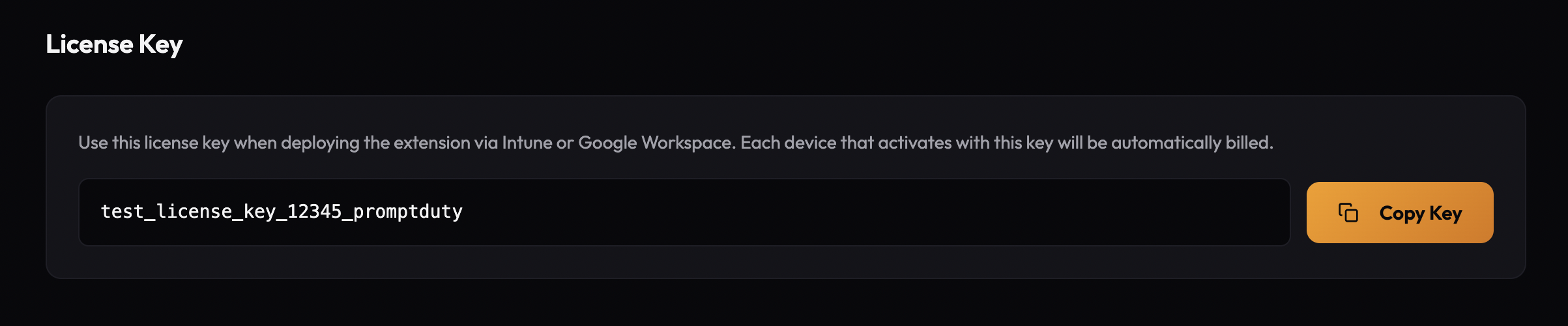
Anyone with this key can activate the extension under your organization's billing. Only share it with IT administrators who will deploy the extension.
Step 3: Deploy the Extension
Choose how you want to deploy the extension to your users:

Microsoft Intune
Best for organizations using Microsoft 365 and Edge browser.

Google Workspace
Best for organizations using Google Workspace and Chrome browser.

Manual Installation
For individual users or small teams without MDM.
Deployment with License Key Pre-configured
When deploying via Intune or Google Workspace, you can pre-configure the license key so users don't need to enter it manually. This is the recommended approach for enterprise deployments.
See the specific deployment guides above for detailed instructions on configuring the license key in your MDM policy.
Step 4: Monitor Usage
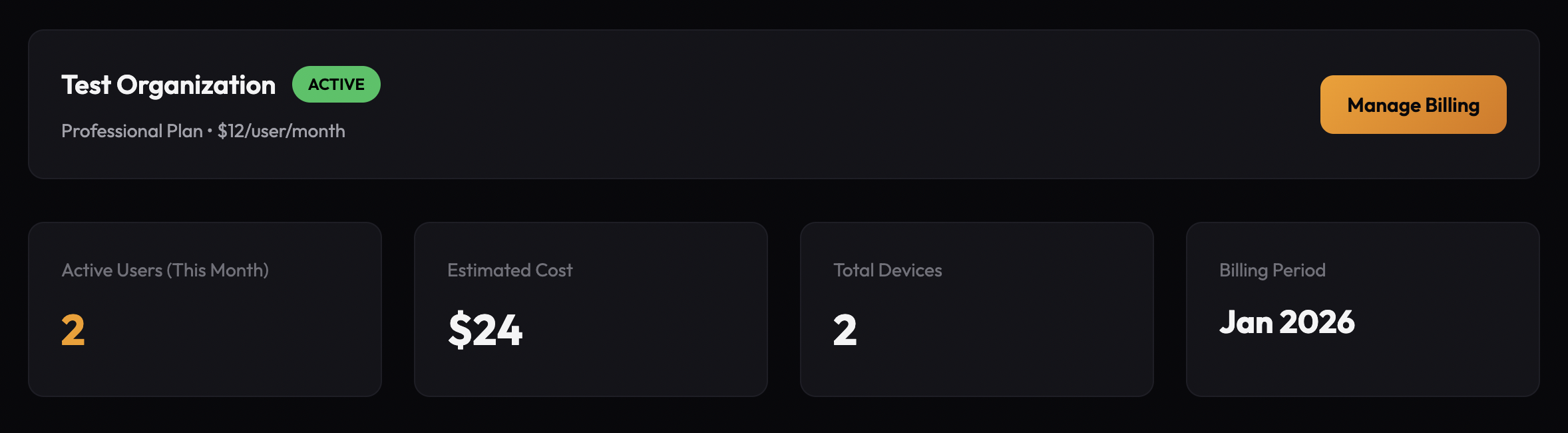
After deployment, monitor your organization's usage from the dashboard:
- Active Users — See how many unique users activated the extension this month
- Estimated Cost — View your projected bill based on current usage
- Manage Billing — Update payment methods, view invoices, or change plans
Next Steps
Once deployed, your users are automatically protected. Here's what else you might want to do: